How to Install Developer Tools Extensions for Chrome
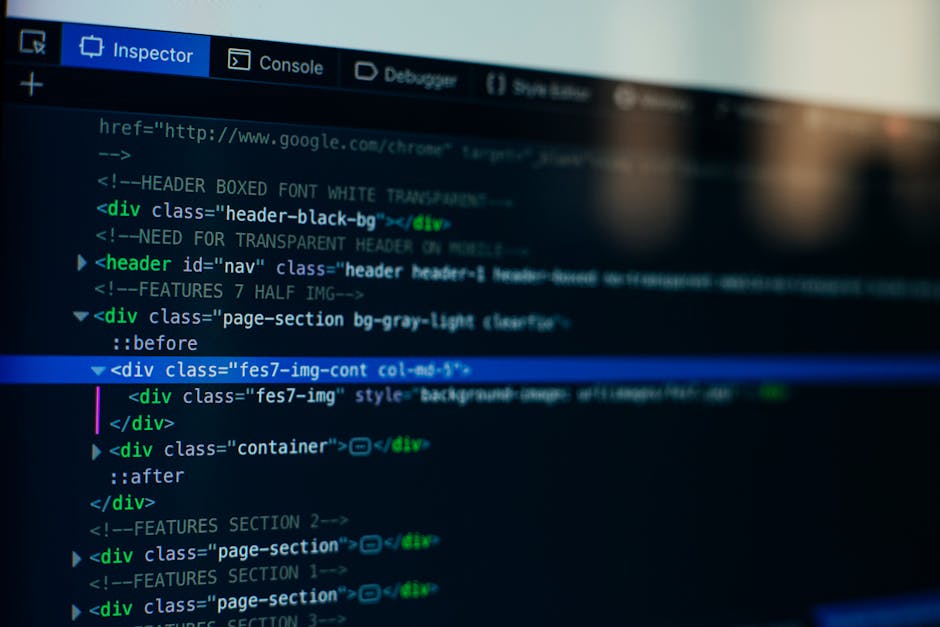
Photo by Markus Spiske on Pexels
Supercharge Your Browser for Development
Developer tools extensions turn Chrome from a simple browser into a professional development environment. Whether you are building websites, debugging APIs, or analyzing competitor tech stacks, the right extensions save hours of manual work. This guide shows you how to install and configure the essential developer extensions step by step.
Which Developer Extensions Should Beginners Start With?
If you are new to web development, do not install everything at once. Start with these three core tools:
- JSON Viewer — makes API responses readable (useful for anyone working with websites)
- Lighthouse — checks your site’s performance and SEO (essential for site owners)
- Wappalyzer — reveals what technologies any website uses (great for learning)
For a full list of recommendations with ratings, read our Developer Tools Extensions guide.
Installing JSON Viewer
Search and Install
Open the Chrome Web Store and search for JSON Viewer. Look for the one with 6M+ users and a 4.5-star rating, published by gildas-lormeau. Click Add to Chrome.
Test It on an API
Open a new tab and go to a public API URL like jsonplaceholder.typicode.com/posts. Instead of raw text, you will now see the JSON data formatted with collapsible sections, syntax highlighting, and line numbers. Click the arrows to expand and collapse objects — this makes exploring API data much easier than reading raw text.
Configure Display Options
Right-click the JSON Viewer icon and select Options. You can change the theme (dark/light), font size, and whether to automatically format JSON. For beginners, the default settings work fine.
Installing Lighthouse
Install from Web Store
Search for Lighthouse in the Chrome Web Store. It is published by Google and has a 4.8-star rating with 6k+ reviews. Click Add to Chrome.
Run Your First Audit
Navigate to any website (try your own or a site you admire). Click the Lighthouse icon in your toolbar (or find it in Developer Tools under the Lighthouse tab). Click Generate Report. After 30-60 seconds, you will see scores for Performance, Accessibility, Best Practices, SEO, and Progressive Web App readiness. Click each category to see specific recommendations.
Understand Your Scores
Lighthouse scores range from 0 to 100: 90+ is excellent, 50-89 needs improvement, below 50 is poor. Click each recommendation to learn exactly what to fix. For example, Properly size images tells you which images are too large and by how much.
Installing Wappalyzer
Install from Web Store
Search for Wappalyzer in the Chrome Web Store. It has a 4.5-star rating with 4k+ reviews. Click Add to Chrome.
Analyze Any Website
Visit any website — for example, a competitor’s e-commerce store or a popular blog. Click the Wappalyzer icon in your toolbar. It will instantly show you the full technology stack: CMS (Shopify, WordPress, etc.), analytics tools (Google Analytics, Hotjar), CDN providers, payment processors, and more. This is incredibly useful for competitive research.
Use the Free Tier Wisely
Wappalyzer’s free tier allows a limited number of lookups per day. Use it strategically — analyze competitor sites, potential partners, and interesting tech stacks you find while browsing. For daily use, the free tier is usually sufficient.
Managing Multiple Developer Extensions
Developer extensions can add up quickly. Here is how to keep them organized without slowing down Chrome:
- Keep only 3-5 active: Core extensions like JSON Viewer and Wappalyzer can stay on. Use on-demand extensions like Octotree or ColorZilla only when working on specific tasks.
- Use keyboard shortcuts: Go to chrome://extensions/shortcuts to set hotkeys. For example, set Ctrl+Shift+L for Lighthouse, Ctrl+Shift+J for JSON Viewer.
- Disable, don’t uninstall: If you need an extension only occasionally (like Tampermonkey), disable it from Manage Extensions and enable only when needed.
Common Beginner Questions
- Will these extensions slow down my browser? JSON Viewer and Wappalyzer only activate when you click their icons, so they have zero impact on browsing speed. Lighthouse runs only when you start an audit.
- Are these safe? All extensions recommended here are open-source or published by reputable companies (Google, GitHub). Always check the publisher name before installing.
- Do I need to be a programmer to use these? JSON Viewer and Wappalyzer require zero coding skills. Lighthouse is helpful for any website owner, even non-developers.
Ready to level up? Check our full Developer Tools Extensions guide for the complete list of recommended tools with detailed reviews.