How to Install and Manage Extensions Across Multiple Browsers
Managing browser extensions across Chrome, Firefox, Edge, and Brave doesn’t have to be a headache. The key is to use built-in sync features, centralized management tools, and manual backup methods to keep your extensions consistent. This guide covers step-by-step installation, cross-browser syncing, and troubleshooting tips to save you time and boost productivity.
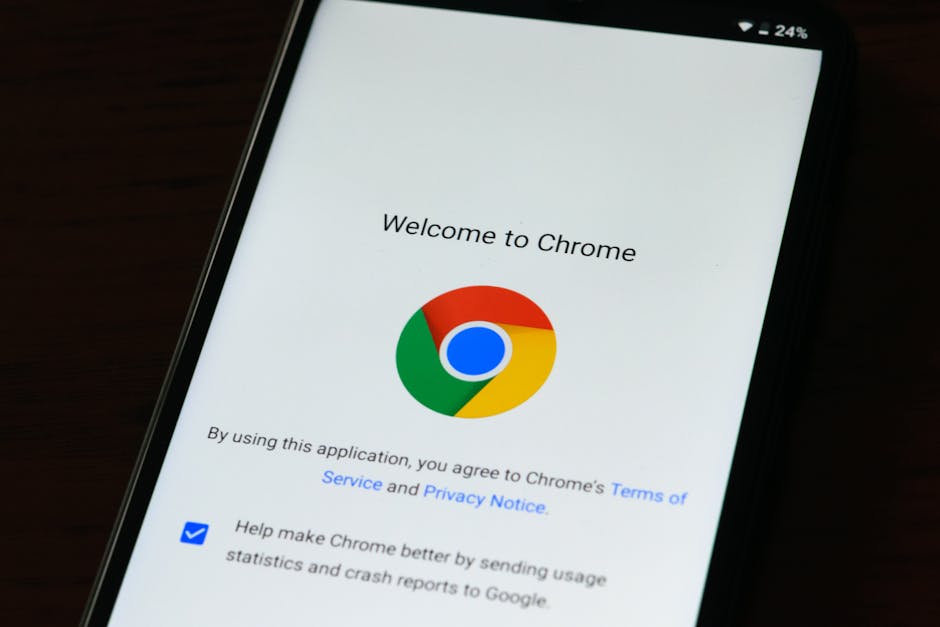
*Photo by cottonbro studio on Pexels*
## Why You Need Cross-Browser Extension Management
Using multiple browsers is common for developers, marketers, and power users. Each browser has unique strengths, but managing extensions separately wastes time. Effective management ensures:
- Consistency – Same tools across all browsers
- Security – Avoid duplicate or outdated extensions
- Productivity – No manual reinstallation after browser updates
## How to Install Extensions on Major Browsers
### Google Chrome
1. Open Chrome Web Store
2. Search for your desired extension (e.g., Grammarly, LastPass)
3. Click Add to Chrome → Add Extension
4. Pin it to toolbar for quick access
### Mozilla Firefox
1. Visit Firefox Add-ons store
2. Find the extension and click Add to Firefox
3. Grant permissions if prompted
4. Manage via Add-ons Manager (Ctrl+Shift+A)
### Microsoft Edge
1. Go to Edge Add-ons website
2. Select extension → Get → Add Extension
3. Edge also supports Chrome extensions (toggle “Allow extensions from other stores” in settings)
### Brave Browser
1. Open Brave Web Store (Chrome-compatible)
2. Install same way as Chrome
3. Brave blocks trackers by default – adjust settings if needed

*Photo by Miguel Á. Padriñán on Pexels*
## How to Sync Extensions Between Browsers
### Use Browser Sync Features
| Browser | Sync Method | What Syncs | Limitations |
|---|---|---|---|
| Chrome | Google Account Sync | Extensions, settings, bookmarks | Only Chrome-to-Chrome |
| Firefox | Firefox Account Sync | Extensions, themes, passwords | Only Firefox-to-Firefox |
| Edge | Microsoft Account Sync | Extensions, favorites, history | Only Edge-to-Edge |
| Brave | Brave Sync (encrypted) | Bookmarks, extensions, settings | Requires chain setup |
Cross-browser sync is not natively supported. You must use third-party tools or manual methods.
### Manual Backup and Restore
1. Export extension list – Use tools like Extension Manager (Chrome) or Export Links extensions
2. Reinstall manually – Visit each browser’s store and install one by one
3. Use a password manager – Many password managers (Dashlane, 1Password) store extension preferences
### Third-Party Management Tools
- LastPass – Syncs across browsers via cloud
- Bitwarden – Open-source, works on all platforms
- Raindrop.io – Bookmark and extension organizer
- OneTab – Saves tab groups with extensions

*Photo by Caio on Pexels*
## Managing Extensions Efficiently
### Organize by Browser Purpose
- Chrome – General browsing, Google services
- Firefox – Privacy-focused tasks, development
- Edge – Microsoft Office integration, shopping
- Brave – Ad-free, crypto-friendly browsing
### Enable/Disable Extensions Per Browser
- Chrome: chrome://extensions
- Firefox: about:addons
- Edge: edge://extensions
- Brave: brave://extensions
Pro tip: Disable extensions you don’t use in each browser to save RAM and improve speed.
### Bulk Management Tips
- Group extensions by function (productivity, security, fun)
- Use profiles – Chrome and Edge support multiple profiles with separate extensions
- Set auto-update – Most browsers update extensions automatically; check manually once a month
## Common Issues and Troubleshooting
### Extensions Not Installing
- Check permissions – Some extensions require specific browser settings
- Update browser – Outdated browsers block new extensions
- Clear cache – Restart browser after clearing cache
### Sync Conflicts
- Log out and back in to your browser account
- Reset sync – Delete sync data and start fresh
- Use separate profiles for work and personal
### Performance Problems
- Disable unused extensions – Especially those that run in background
- Limit to 10-15 extensions per browser for optimal speed
- Check memory usage – Use Task Manager (Shift+Esc in Chrome/Edge)
## Best Practices for Extension Hygiene
- Audit monthly – Remove extensions you haven’t used in 30 days
- Check permissions – Avoid extensions that request access to “all websites” unnecessarily
- Keep backups – Export extension lists to a text file
- Use open-source – Prefer extensions with public code for security

*Photo by RDNE Stock project on Pexels*
## Conclusion
Installing and managing extensions across multiple browsers doesn’t have to be chaotic. By leveraging sync features, manual backups, and third-party tools, you can maintain a consistent toolkit across Chrome, Firefox, Edge, and Brave. Start today by auditing your current extensions, enabling sync where possible, and using a password manager to unify your experience.
Need more plugin tutorials and browser tips? Visit plugintutor.tech for step-by-step guides, product comparisons, and expert advice on getting the most out of your browser extensions.